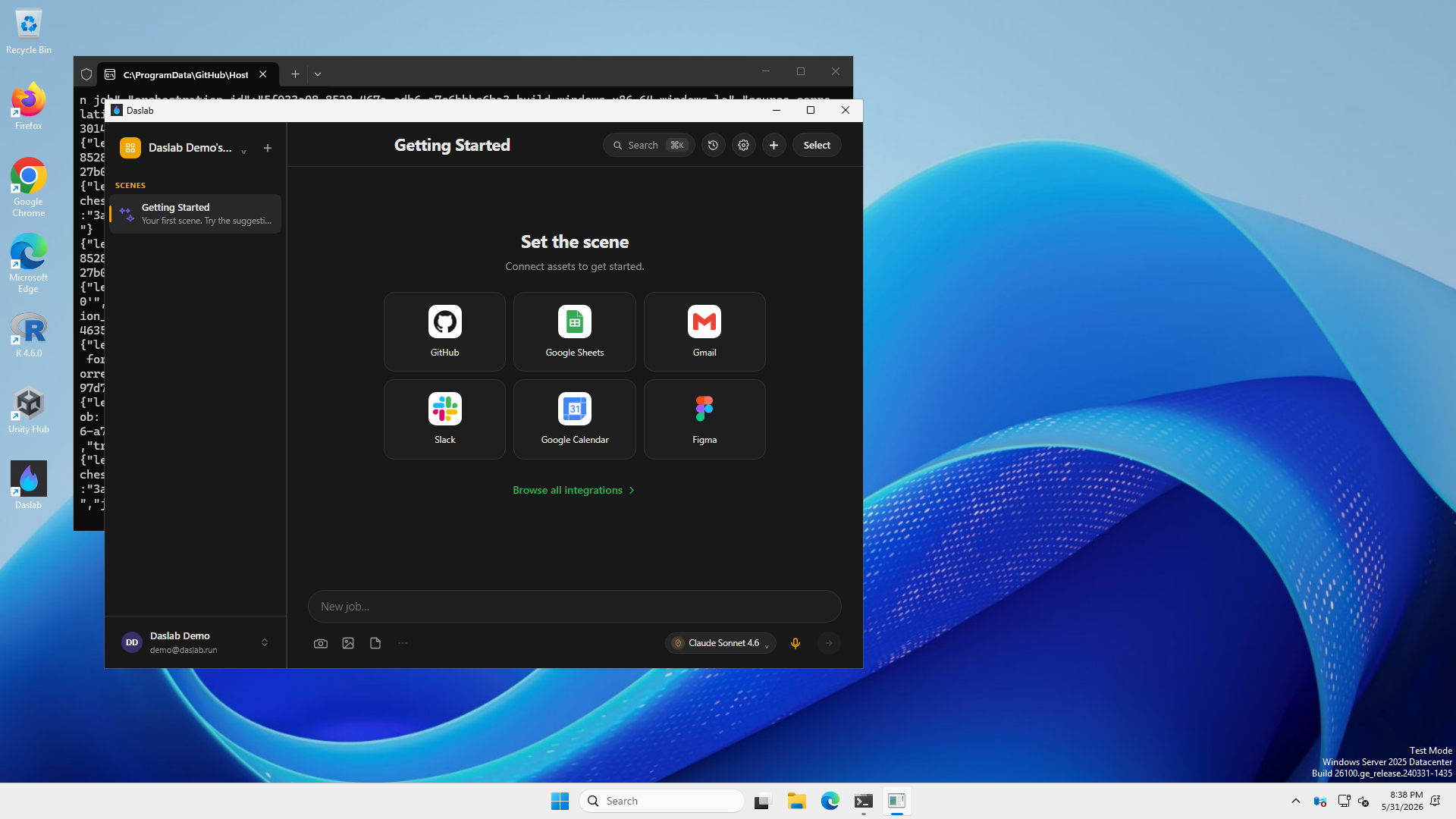
We screenshot our Windows app from CI. Here's how.
We don't have a Windows machine. We ship a Windows app. So we built a CI step that installs the actual .exe, logs into the real app with a demo account, and screenshots every screen.
Here's the screenshot it produces — the real app, on a real Windows desktop, logged in with a demo account:
The setup
Our desktop app is built with Tauri (Rust + web frontend). GitHub Actions builds it for macOS, Windows, and Linux on every release tag. The Windows runner has a real desktop — Windows Server with a GUI. We use that.
The smoke test does five things:
- Install the NSIS
.exesilently - Launch the installed app with Chrome DevTools Protocol enabled
- Connect Playwright to the Tauri webview via CDP
- Log in with a demo account and navigate through the app
- Take screenshots — both Playwright (webview) and PowerShell (full desktop)
Connecting to the Tauri webview
Tauri on Windows uses WebView2 (Edge/Chromium). You can enable remote debugging by setting an environment variable before launch:
const app = spawn(EXE_PATH, [], {
  env: {
    ...process.env,
    WEBVIEW2_ADDITIONAL_BROWSER_ARGUMENTS: "--remote-debugging-port=9222",
  },
  detached: true,
  stdio: "ignore",
});
Then connect Playwright via CDP:
const browser = await chromium.connectOverCDP("http://127.0.0.1:9222");
const page = browser.contexts()[0]?.pages()[0];
The webview needs a moment to initialize. We retry the connection for up to 30 seconds:
let page = browser.contexts()[0]?.pages()[0];
if (!page) {
  for (let i = 0; i < 15; i++) {
    await new Promise((r) => setTimeout(r, 2000));
    await browser.close();
    browser = await chromium.connectOverCDP("http://127.0.0.1:9222");
    page = browser.contexts()[0]?.pages()[0];
    if (page) break;
  }
}
Once connected, it's just Playwright. Fill inputs, click buttons, wait for selectors, take screenshots. The webview is a full Chromium instance.
Real login, real credentials
The demo account credentials live in our kern vault — age-encrypted, committed to git. CI decrypts them with a single environment variable:
- name: Decrypt credentials
  env:
    KORN_AGE_KEY: ${{ secrets.KORN_AGE_KEY }}
  run: |
    CI_DEMO_EMAIL=$(bun ../oss/kern/bin/kern.ts secret get ci_demo_email)
    CI_DEMO_PASSWORD=$(bun ../oss/kern/bin/kern.ts secret get ci_demo_password)
The test logs in through the actual login form, waits for the sidebar to appear, clicks into a scene:
await page.fill('input[type="email"]', EMAIL);
await page.fill('input[type="password"]', PASSWORD);
await page.click('button[type="submit"]');
await page.waitForSelector(".sidebar", { timeout: 30000 });
await page.screenshot({ path: "screenshots/02-home.png" });
Full desktop screenshot
Playwright screenshots capture the webview content. For the full Windows desktop — title bar, taskbar, wallpaper — we use PowerShell:
const psScript = resolve("screenshots", "_capture.ps1");
await writeFile(psScript, [
  "Add-Type -AssemblyName System.Windows.Forms",
  "Add-Type -AssemblyName System.Drawing",
  "$s = [System.Windows.Forms.Screen]::PrimaryScreen.Bounds",
  "$b = New-Object System.Drawing.Bitmap($s.Width, $s.Height)",
  "$g = [System.Drawing.Graphics]::FromImage($b)",
  "$g.CopyFromScreen($s.Location, [System.Drawing.Point]::Empty, $s.Size)",
  "$g.Dispose()",
  `$b.Save("${outPath}")`,
  "$b.Dispose()",
].join("\n"));
execSync(`powershell -NoProfile -ExecutionPolicy Bypass -File "${psScript}"`);
We also set the display to 1920x1080 and resize the app window to 1280x800 so it sits nicely on the desktop instead of hiding behind the taskbar:
execSync(`powershell -NoProfile -Command "Set-DisplayResolution -Width 1920 -Height 1080 -Force"`);What we learned
Bun + Playwright doesn't work on Windows. Playwright's process management breaks under Bun on Windows. We use npx tsx for the test script even though the rest of our stack is Bun.
NSIS silent install path is unpredictable. We tried /D=C:\DaslabDesktop to control the install directory. It didn't work through Git Bash. We let NSIS install to the default location and find the exe with a search:
APP_EXE=$(find "$LOCALAPPDATA" "$PROGRAMFILES" -name "Daslab Desktop.exe" 2>/dev/null | head -1)The CDP page isn't immediately available. WebView2 reports the debugging port as ready before the page is loaded. The first connectOverCDP succeeds but contexts()[0].pages() is empty. You have to reconnect until a page appears.
PowerShell screenshots need absolute paths. The working directory inside PowerShell differs from the Node process. We write a .ps1 file with the absolute output path and execute it.
The result
Every tag push now produces four artifacts: macOS app, Windows installer, Linux AppImage, and a windows-screenshots bundle with login, home, scene detail, and full desktop views. If the app breaks on Windows, we see it in the screenshots before any user does.
Total added CI time: ~2 minutes on top of the Windows build. Worth it for the confidence that the app actually works on a platform none of us use daily.
The full workflow is at .github/workflows/desktop.yml and the test script is at .github/scripts/windows-smoke-test.ts.