LINE groups: orders, bookings and tasks in one place
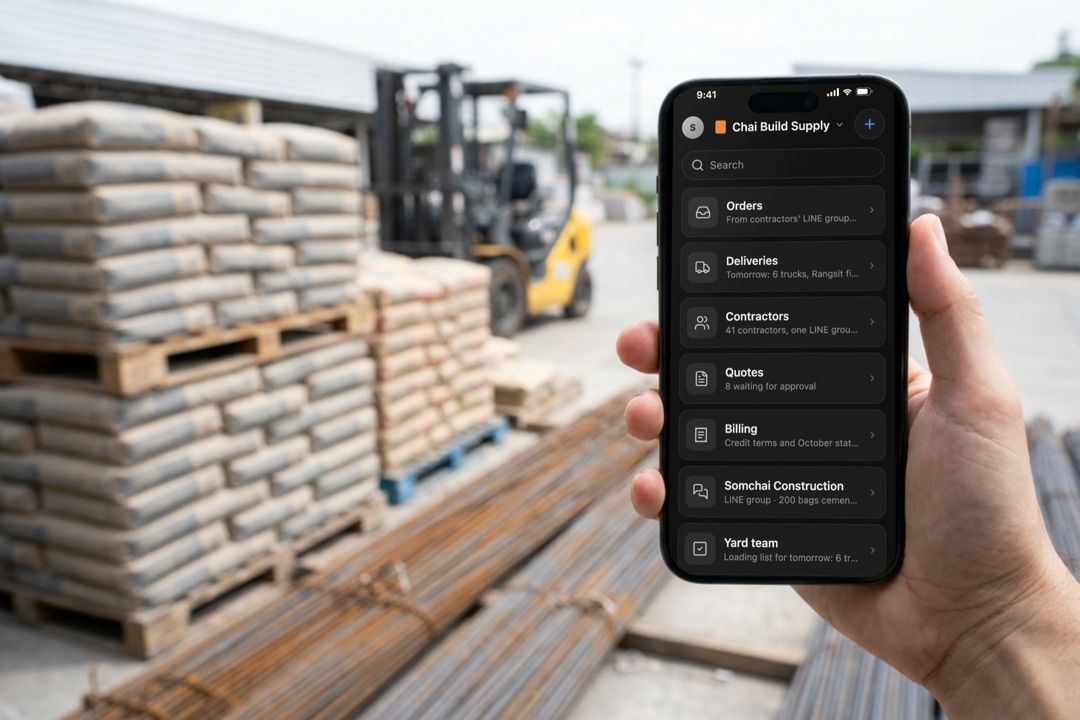
In Thailand a business runs on LINE groups: one with each supplier, one with each customer, one for each branch's staff. What gets agreed in them lives nowhere else. Someone scrolls back at night to type it into a sheet, and some of it gets missed.
Daslab sits in those groups and keeps what's agreed in one place, for the business that brought it in.
Every group agrees on the same few things
Whatever the business, an agreement in a chat has the same parts: for whom, who, what, how much, where and when. Daslab picks those out.
| The group | What gets agreed | What Daslab keeps |
|---|---|---|
| A supplier and a customer | an order | the items, quantities, delivery place and day, and the invoice that goes with it |
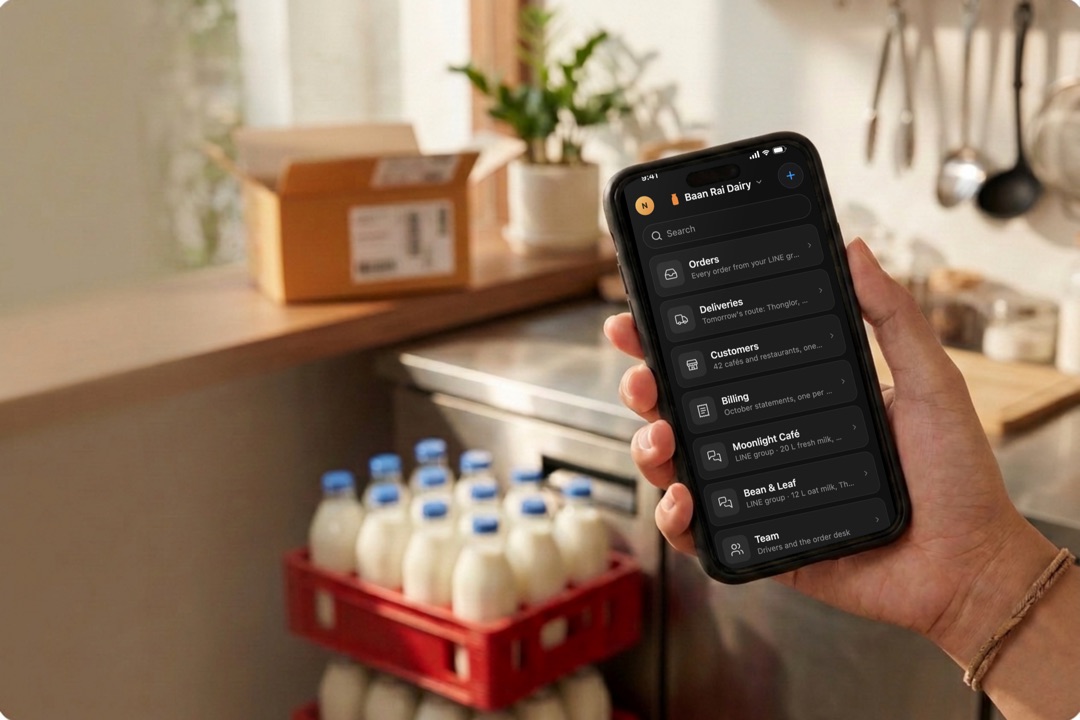
| An event organizer and its vendors | a booking | the vendor, the time and place, deposits, and what's still open |
| A branch's own staff | a task | who, what and by when, and the handover at the end of a shift |
| An accountant and a client | a request | which documents, by which date |
Both sides see the same card
When an order is agreed, Daslab answers in the group with a short card, so the café and the supplier read the same thing:
✓ Order noted for Moonlight Café · 20 L fresh milk · Thonglor · Fri 24 Oct
The day before delivery it reminds both sides. When the supplier posts a photo of the invoice, Daslab checks it against the order it belongs to.
A group comes into your workspace in two steps
- Add @daslab to the LINE group. It says hello once, in Thai and English, so everyone in the group knows it is there.
- In the group, type /link. Daslab answers with a link. Open it, continue with LINE, and pick your workspace and the scene the group goes in. Only people in the group can use the link, so a forwarded link does nothing.
Signed in to Daslab with LINE already? Open Add, then LINE, then Personal LINE, and add yours. You get a card only you can see, listing the groups you are in with Daslab. Drag a group out of it into a scene to connect it.
One group can serve both businesses in it. The café and its supplier each connect the same group to their own workspace, and each sees it from the moment one of their own people was confirmed in it. Anyone in the group can type /who to see which workspaces have it.
Everything Daslab posts is signed
A message from Daslab in a group always carries the name of the business it is for, as in Moonlight Café via Daslab. When you write into a group from its chat cell, pressing Send is your approval. When the agent drafts a message, it waits until a person at your business approves it.
Who sees what
- Only businesses whose own people are in a group see it in Daslab, and only from when that was confirmed. Nothing said before Daslab joined is visible to anyone.
- Chats are not used to train AI.
- Anyone in the group can remove Daslab from it at any time.
The same workspace fits every kind of group
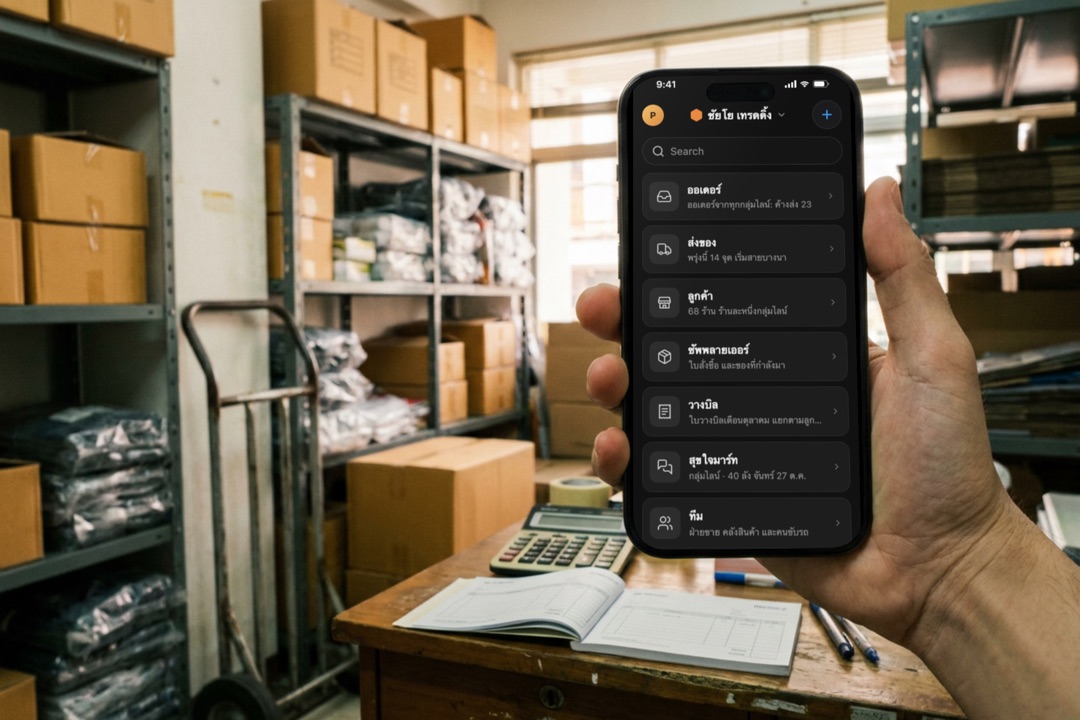
A business names its own scenes and cells, so each workspace uses that business's words.
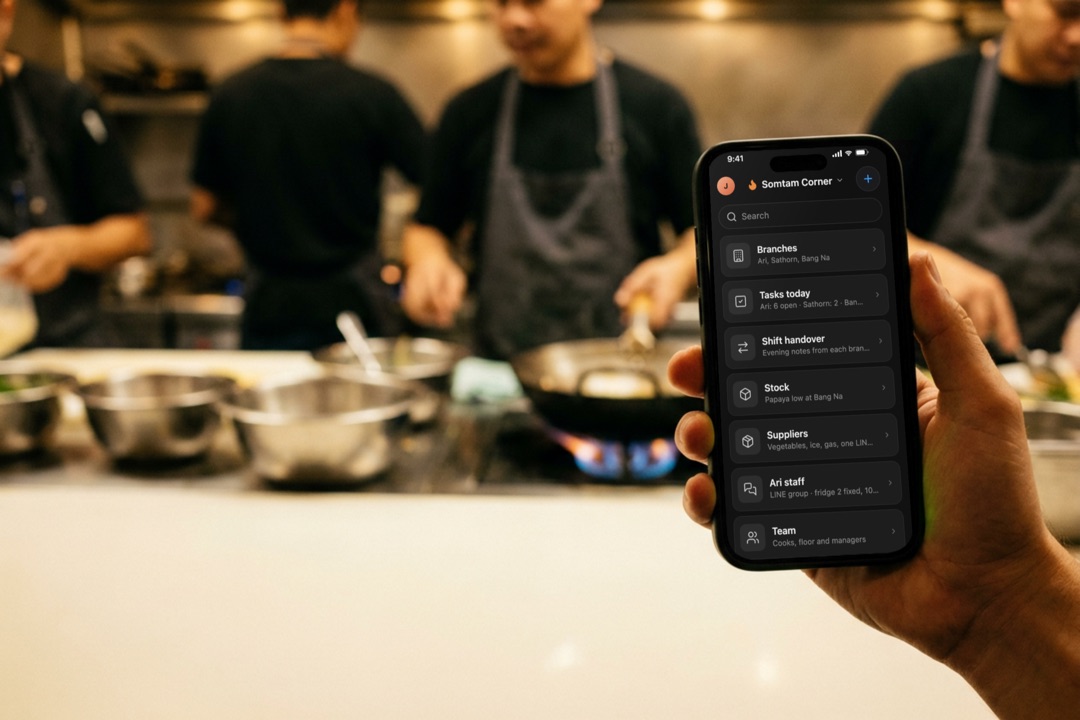
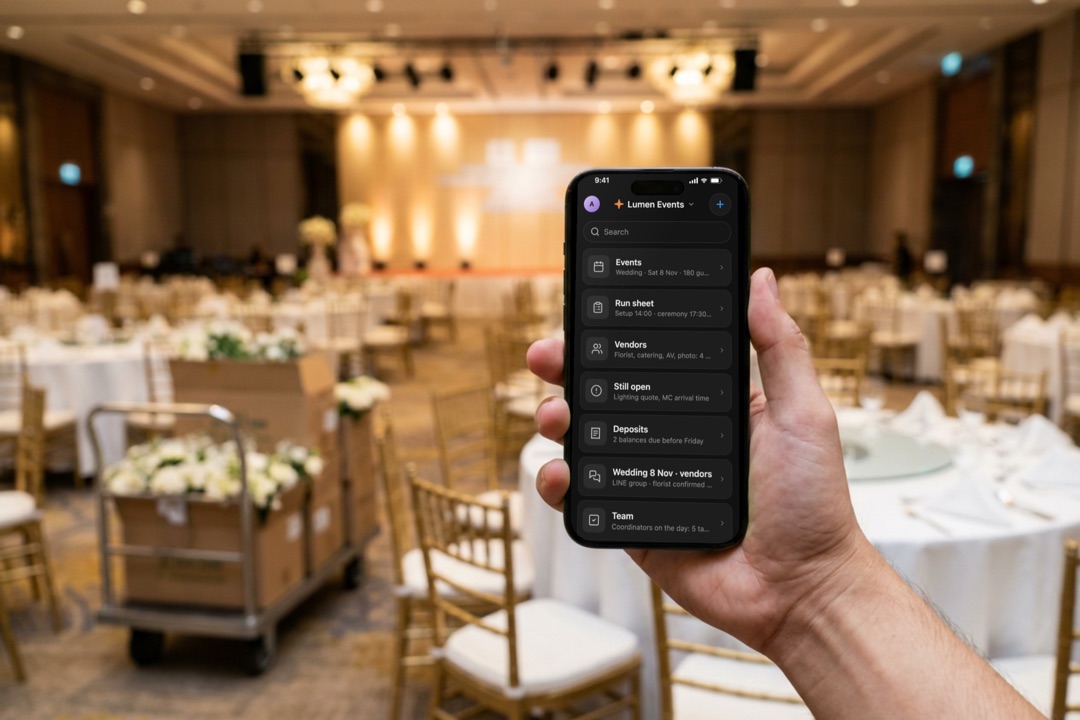
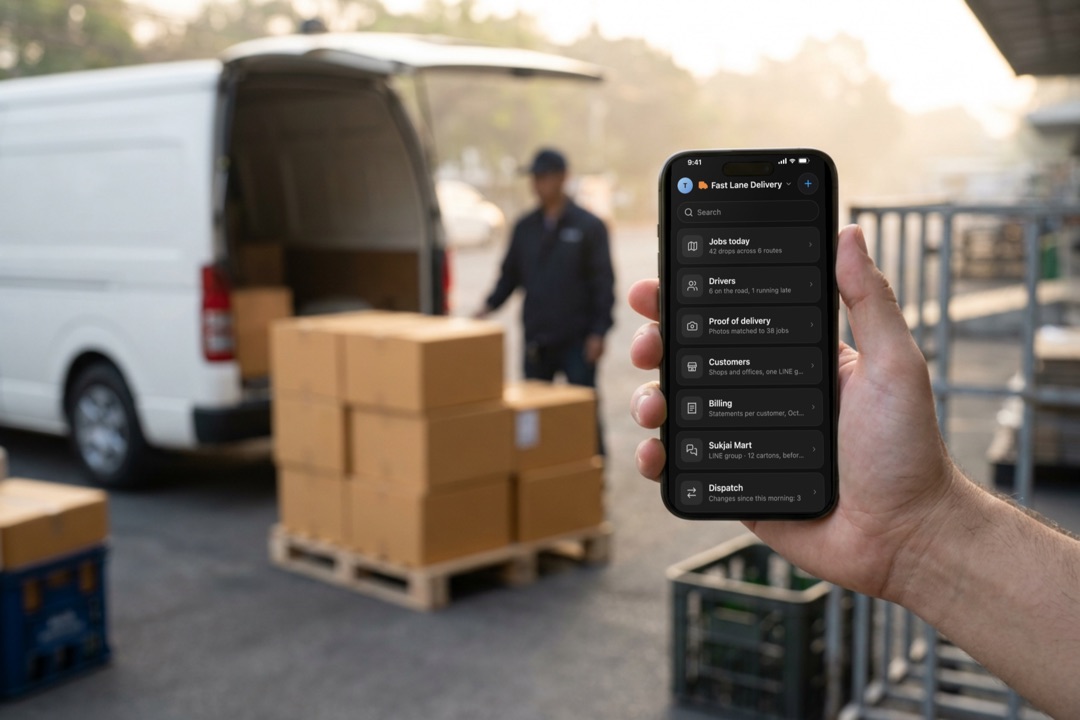
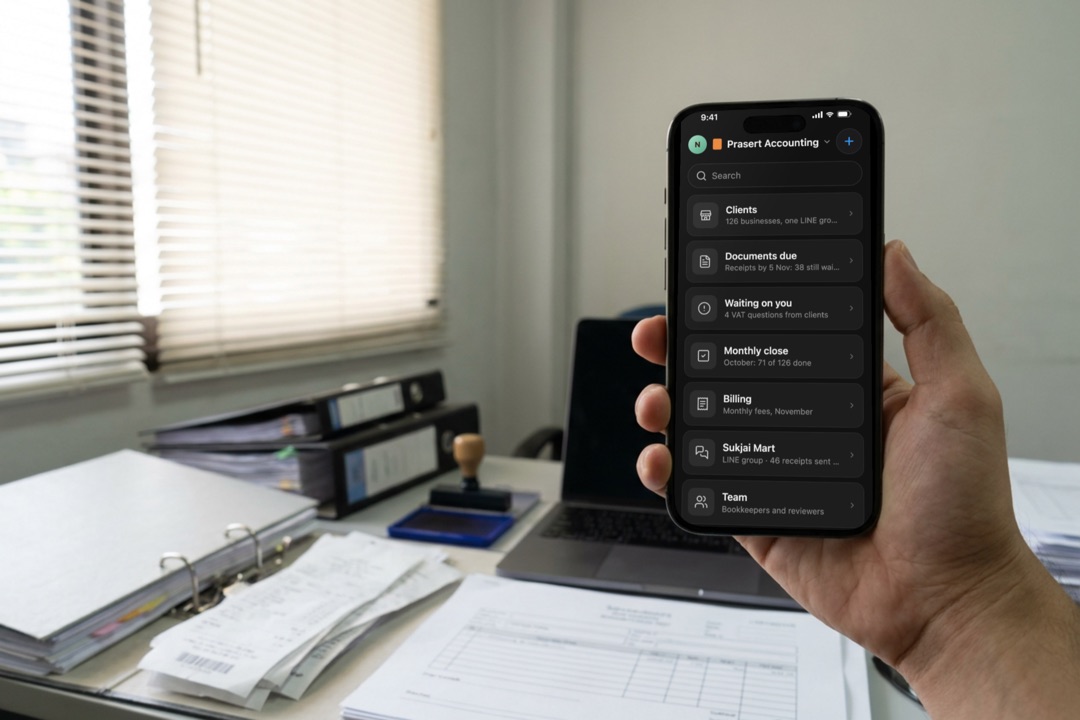
The names can be in Thai, as in this trading company's workspace:
Your own Official Account gets a concierge
When customers write to your own Official Account one to one, a concierge answers them in Thai or English from your own notes. When a case needs a person, it hands it to your managers' LINE group with a case number, and a manager's reply goes back to the customer. Each customer's conversation is one job your team can open and read. Connecting a LINE Official Account has the setup.
Start
- Add @daslab on LINE: line.me/R/ti/p/@daslab
- Sign in with LINE at daslab.run. It is free to start.